LED/Laser Plotters vs. Inkjet Plotters – Which One to Choose?

Choosing the right plotter for your design, engineering, or architectural projects can make a huge difference. By comparing and contrasting the key features, benefits, and limitations of Inkjet plotters and LED/Laser plotters, we’ll help you navigate the decision-making process so that you can select the perfect plotter for your specific needs.

Printing Technology

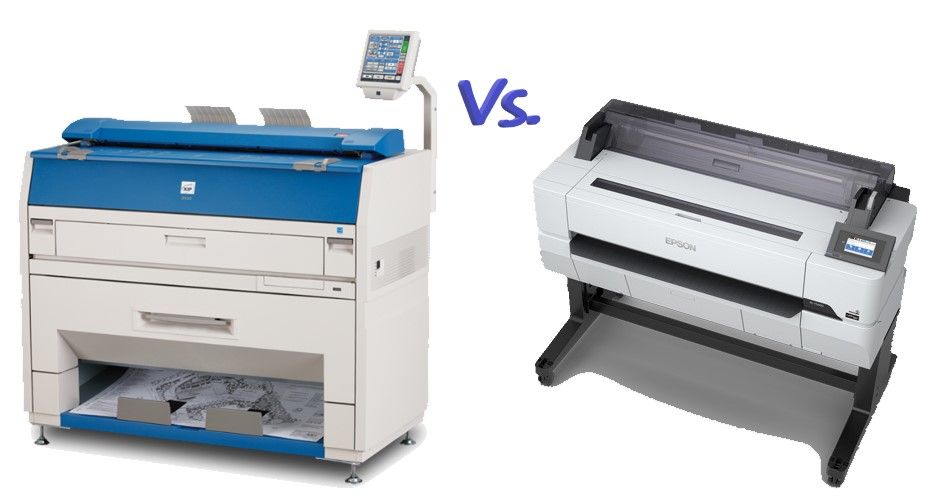
MFP PlotterLED/Laser Plotters: These plotters use electrostatic technology to create precise images on paper. A laser or an array of LEDs is engineered to reproduce the image with toner (black powder particles) on a photosensitive drum, resulting in sharp lines and accurate details in monochrome (black & white). This technology consists of an intricate series of functions that have to occur to produce prints.  To learn more, read our blog post, What to Consider Before You Buy a LED or Laser MFP Plotter.

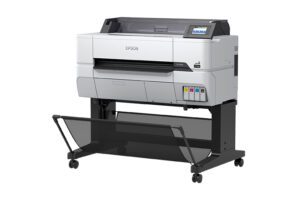
Epson T3770E 24" Color PlotterInkjet Plotters: Inkjet plotters, are simpler machines that lay tiny droplets of ink onto the paper, producing a wide color spectrum and subtle gradients producing crisp line work and color richness.  This technology has a few components that are succinctly calibrated from the manufacturer.

Size & Portability

LED/Laser Plotters: LED/laser printers are typically larger and weigh a significant amount more than inkjet printers.  Upon installation LED/laser plotters are calibrated onto feet and the caster wheels are raised; so moving this equipment often requires a service call from a technician.  it’s wise to carefully consider whereto placing this type of plotter prior to delivery, because you probably will not want to move it.

Inkjet Plotters: These are significantly more compact and can easily be moved when mounted to a stand with casters.  Some of the smaller desktop plotters are so light weight that one person can easily move it, making the plotter extremely portable.Best Printer Repair & Hp Plotter Maintenance Company Service Dubai, UAE

Repairs & Maintenance

LED/Laser Plotters: This technology requires on-going preventative maintenance to keep all of the components working properly.  Image quality will degrade over time, but with a thorough cleaning and changing some parts, image quality can be restored.

Inkjet Plotters: A lot of inkjet printers require very few if any service calls from a technician.  However, many of them do require the user to perform some more frequent light on-screen functionality to preserve image quality and equipment health.Epson SureColor T5170 wireless printer, , large format inkjet printer, best large format printers, large color printer

Warranty

LED/Laser Plotters:  Most warranties on LED/laser printers are 90 days or shorter.  The companies that sells LED/laser printers are often the same company that offer technical service; and they will typically offer a service contract with the purchase.

Digitize blueprints, Best large format inkjet printer, Wide format digital printer, Large plotter, where to print Digitize blueprints, Best large format inkjet printer for sale, Wide format digital printer for rent, Large plotter for saleInkjet Plotters: Inkjet printers typically have a one year warranty, which is significantly more advantageous.  It is wise to purchase extended warranties on most inkjet plotters, because the potential service calls can be rather costly.

Printer Longevity

LED/Laser Plotters: If properly maintained a LED/laser plotter can have a significantly longer life-span than most inkjet printers.

Inkjet Plotters: As with a lot of products manufactured today, based on our experience, the average life-span of a typical descent quality ink-jet plotter that runs regularly every day and has extended service is approximately three to five years.Paper Facts: Part 5 Other Considerations - At Your Service
Print Speed and Efficiency

LED/Laser Plotters: Known for their high-speed capabilities, LED/Laser plotters can produce intricate designs and large-format prints quickly, making them ideal for time-sensitive projects and high-volume printing tasks.

Inkjet Plotters: While inkjet plotters have improved over the years, they generally have slower printing speeds compared to LED/Laser plotters. This can be a consideration if volume is very high.A Blueprint for Economic Development Reform | CBCNY

Image Quality

LED/Laser Plotters: These plotters excel in producing sharp, precise lines and text, making them suitable for technical drawings, blueprints, and detailed engineering plans.

Inkjet Plotters: Inkjet plotters shine when it comes to color reproduction and the ability to create vibrant, full-color prints with smooth gradients. Today’s inkjet printers produce fine lines and small details that are also as crisp as those produced by LED/Laser plotters.

Large scanner for rent, Large document scanner near me, Large format inkjet printer, buy Wide printer

Media Compatibility

LED/Laser Plotters: LED/Laser plotters can handle a limited variety of media types, inclusive of standard bond paper, vellum, and mylar. They primarily handle 20lb media and so LED/laser plotters are not so versatile in accommodating different paper weights and sizes.

Inkjet Plotters: Inkjet plotters are significantly more versatile, with the advantage of being able to print on a wider range of media, including the aforementioned bond paper, vellum and mylar, yet can also handle various forms of glossy paper, canvas, and various textures. This flexibility can be beneficial for artistic and design-oriented projects.

Cost Considerations

LED/Laser Plotters: While LED/Laser plotters might have significantly higher upfront costs, their efficient toner usage and faster printing speeds can lead to lower consumable costs in the long run, especially for high-volume printing needs.Tips to improve your firm's profitability - EagleI  However, total cost of ownership is likely to be considerably more with an LED/laser plotter when you calculate in the cost of service, maintenance and repairs.

Inkjet Plotters: Inkjet plotters often have a lower initial investment, but ink costs can add up over time, especially if you’re printing extensively.  Inkjet plotters often have expensive print-heads that may also require being changed out.Inkjet vs Laser: Which Printer Should You Get? – Printer Guides and Tips  from LD Products
In Summary

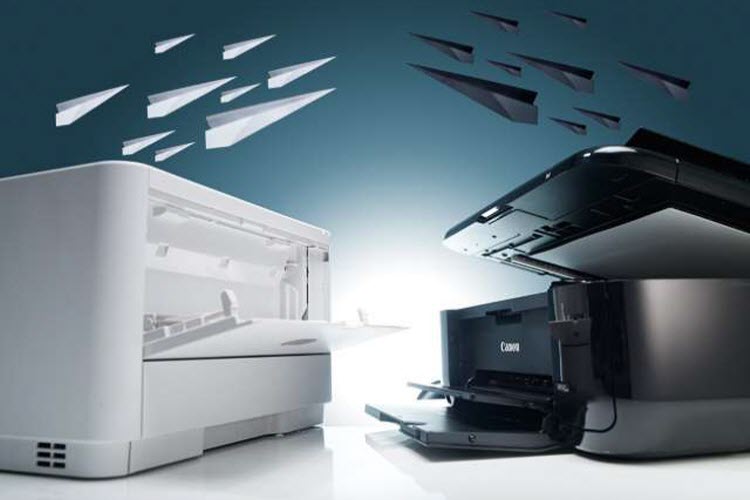
The choice between LED/Laser plotters and Inkjet plotters depends on your specific requirements and priorities. If your print volume is high and speed are paramount, LED/Laser plotters might be the best fit. Conversely, if your print volume is low to moderate, or you want to print some in color, or you want to have media versatility, Inkjet plotters could be the right solution for you. Consider your printing needs, budget, and the types of prints you’ll be producing to make an informed decision that aligns with your goals.  We primarily sell inkjet plotters because inkjet printers are more suitable for the overwhelming majority of our customers.

If you want more help deciding which technology is right for you, or want our expert opinion of which specific plotter is right for your particular needs, call us at (602) 224-9971 or contact us now, we’re happy to help!

What to Consider Before You Buy a LED or Laser MFP Plotter

What is LED & Laser Printing

To clarify, in the context of printing technology, “LED” stands for “Light Emitting Diode.” LED technology is used in various applications, including LED MFP (Multifunction Printer) plotters, where it plays a role in the printing process. Laser printing is very similar to LED printing; while both LED printing and laser printing are based on electrophotographic principles, they use marginally different technologies for the light source that creates the image on the photoconductive surface (Drum). LED printing uses an array of light-emitting diodes (LEDs), while traditional laser printing uses a laser beam. LED and Laser printing are known for there energy efficiency, precision, and ability to produce high-quality prints quickly.  These technologies most often utilize a process whereby the use of a Laser or LED’s indirectly create images or text onto paper. Here’s a basic overview of the process:

Image Formation: The image or document to be printed is sent to the LED plotter from a computer or scanner.

Drum: Inside the plotter, there is a rotating cylindrical drum coated with a special material called a photoconductor.How Digital Photocopiers work | All about Copiers and Printers

Charging: The surface of the drum is given a uniform positive charge usually by a charging corona wire.

Exposure: Either, An array of tiny LED lights shines onto the surface of the drum. These LEDs emit light to create an image by selectively discharging areas of the charged surface.  Or, A laser beam scans across the surface of the drum. The laser is modulated to selectively discharge areas of the charged surface, creating an electrostatic latent image that represents the content to be printed.

Toner Application: toner, which is a fine powder, is attracted to the areas on the drum that have been discharged by the LED lights or laser. The toner briefly adheres to the electrostatic image, forming a visible image on the surface of the drum.

Transfer: A sheet of paper is fed through the plotter. A transfer corona applies a strong negative charge to the back of the paper, causing the toner on the drum to be attracted and transferred onto the paper.

Fusing: The paper with the transferred toner passes through a fuser unit, which uses heat and pressure to adhere the toner particles and fuse them permanently onto the paper.

Cleaning: After the transfer, any residual toner left on the drum is removed using a cleaning blade, preparing the drum for the next print cycle.

Discharge and Erasure: The remaining electrostatic charge on the drum’s surface is neutralized, erasing the latent image and preparing the drum for the next print.

Output: The printed paper is ejected from the printer, completing the printing process.Ricoh Aficio 240W Wide Format Printer Plotter - Printers

Benefits of a Laser or LED Plotter

Investing in a cutting-edge LED or Laser MFP plotter can revolutionize your printing experience, but tread carefully to avoid potential pitfalls.  LED & Laser printing are known for there speed, precision, and ability to produce high-quality images. They are commonly used in blueprint shops, reprographic houses, large print rooms, and higher volume print offices.  These laser printers and LED MFP plotters are commonly used to print monochrome (black & white or grayscale) engineering drawings, architectural plans, and other large-format documents.  If the print volume is high enough, the per unit cost to operate Laser or LED plotters can be incredibly low. Another benefit of these Laser or LED MFP Plotters is the scanning capability, and the space saving compact configuration.

Critical Factors to Consider with a Laser Printer or LED MFP

There are critical factors to keep in mind before committing to a purchase or lease of a LED Plotter or Laser Printer.  Factors worth exploring are: ease of use, cost misconceptions, maintenance issues, potential portability issues, and several others; most of which are here to guide you through the potential stumbling blocks, ensuring you make an informed decision.

Monochromatic (Black & White) Printing

Black & White 2D Floor Plans - 3DPlansMost laser or LED Plotters only use black toner to print in black & white or grayscale. So most of these printers do not offer an option to print in color.

LED Plotters & Laser Printer Installation

Wide format laser printers & LED MFP plotters are substantial large heavy equipment that often require factory trained technicians to be properly installed.  Installation usually comes at an additional expense.Printing & Plotting | Daniels

Is an LED or Laser Printer Easy to Use?

Often with wide format plotters, there can be a learning curve to become familiar with the software as well as the nuances of the printer’s hardware.  LED MFP plotters & laser printers often require some training to become familiar with the capabilities of these plotters.  With most of these large plotters there is a technique to things like properly removing the occasional paper jam, whereby doing it improperly can certainly lead to frustration and a possible service call! These plotters are not usually simple plug-n-play devices.

Cost Considerations of LED or Laser MFP Plotters

Dollar sign clipart 5 - Cliparting.comWhile LED & Laser MFP plotters may boast efficiency, upfront costs can be deceptive.  As previously stated, they are large heavy equipment, so freight to get it can be expensive, there is often a substantial installation fee beyond the high initial investment in the equipment.  Since these plotters utilize toner and paper, evaluating the consumable costs are another factor.  And this type of equipment strongly encourages preventative maintenance, so plan on seeing and paying a technician to come out a few times a year to keep your plotter running well.  And when components require replacement that adds another dimension to your ongoing expenses.  Calculate the Total Cost of Ownership to understand the long-term financial commitment accurately.

Print Volume and Speed of Laser & LED MFP Plotters

Assessing your actual printing needs is paramount – Don’t be swayed solely by impressive print speeds! High-speed output might be necessary if your volume substantiates it. If you intend to print a substantial amount of pages every day, it might be worthwhile; however, if the printer is spending a considerable amount of time dormant, it may be more printer than you need.  Failing to match the device’s capabilities with your workload can lead to inefficient resource allocation and increased costs.  Simply put, these plotters are designed for high usage.

Toner Efficiency in MFP Plotters

LED & Laser MFP plotters utilizing toner are lauded for their precision, but the efficiency of toner usage varies. Research the toner consumption rates and the cost of replacement cartridges. Overlooking this aspect could result in unexpected expenses. Also look into availability of toner; it’s nice to have options when it comes time to replenish supplies, if supply of toner is limited this can certainly disrupt your workflow.

Anticipate Maintenance Demands for Your Laser or LED PrinterPlotter, Laser, & Wide Format Printer Maintenance and Repair | Treasure Coast IT Solutions

Consider the maintenance requirements of the LED or Laser MFP plotter. Complex devices demand specialized expertise, leading to potential prolonged down-time if issues arise. Factor in the availability of technical support and service options to keep your printing equipment running smoothly.  And as previously mentioned, anticipate and schedule-out for preventative maintenance to assure print quality remains and for the overall health of your new plotting equipment.

Compatibility Challenges With Your New Plotter

Before committing, assess the compatibility of the Laser or LED MFP plotter with your existing software and hardware infrastructure. Incompatibilities could hinder integration and workflow efficiency, requiring additional investments in updates or replacements.  If you are thinking about purchasing an older model, beware that it may require a computer system that is running an older operating system, as the manufacturer of the MFP plotter may have not created more recent software drivers (software that allow your computer to effectively communicate with your MFP device) to work with more recent operating systems.

Safeguarding Your MFP Plotter Against Premature Obsolescence

How to Securely Dispose of a Printer | PCMagTechnological advancements are rapid. Often times a plotter will be offered at a super low price, just because it may be near discontinuation.  Will your chosen LED MFP plotter remain relevant in the coming years?  Research the device’s upgrade potential and its compatibility with evolving industry standards to avoid premature obsolescence.

MFP Plotter Portability

5 Inch Industrial Heavy Duty TPR Trolley Caster Wheels-Dajin caster

Again, wide format laser printers & LED MFP plotters are substantial large heavy equipment.  The location where the new MFP plotter is installed, is typically where it stays; due to its size and weight, you may not want to ever move it.  Although it may have casters, proper installation typically requires lowering permanent legs and properly balancing the plotter equipment; so its usually a good idea to call in a service technician to move most MFP plotters.

MFP Scanner PitfallsLarge format plotter printer, Digitize blueprints, Best large format inkjet printer, Wide format digital printer, Large plotter Inkjet plotter printer, Large plotter printer

Although it may seem nice to have the scanning capability tied in with the plotter, there are several issues to consider:

  • Potentially inferior scanner: In MFP configurations, lower quality scanners are often integrated in order to provide the plotter at a lower price tag.
  • Software limitations: Some manufactures limit the capabilities of the equipment via software; this presents opportunity to up-sell features to you.
  • Possible constraints when service is needed: When one aspect of the plotter goes down for service issues, it deems the entire plotter as inoperable. An example of this is if the scanner breaks down, you may not be able to print either.
  • What to do when one major function outlasts the other? If you are fortunate when one aspect of the plotter becomes inoperable, that the other remains functional, this creates another issue. An example of this is if the printing functionality breaks down, and becomes cost prohibitive to fix, yet the scanner continues to function properly.  At this point you become faced with a challenging decision:
    • Replace the entire plotter scanner, or
    • Keep the large device for the scanning capability and purchase another plotter.

Either choice is not optimally efficient.

Alternatives to Laser or LED MFP Plotters

If your volume does not substantiate a toner based plotter; you might be a good candidate for an inkjet printer paired with a stand alone scanner (if scanning is needed).  Inkjet plotters are considerably less expensive, are usually less costly to ship, most often do not require installation, require little to no preventative maintenance, are easy to learn & use, and can easily be moved.wide printer for rent, wide printer near me, wide printer services, large format digital printing, large format printing services, inkjet plotter printer

In Summary

The allure of an LED or Laser MFP plotter using toner is in some cases worth considering, but the journey is riddled with pitfalls that can be prohibitive. By scrutinizing costs, print volume needs, maintenance demands, compatibility, and future-proofing, you can see that this type of plotting equipment only really benefits those that only print in black & white and have a high print volume.  Our expert technicians are happy to assist you by assessing your print (and scan) needs, in order to make the right printer recommendation, call us now at (602) 224-9971, or contact us now, we’re happy to help!

Beware! The Drawbacks of All-in-One (MFP) Plotter/Scanner

Why? The Benefits of a MFP Plotter

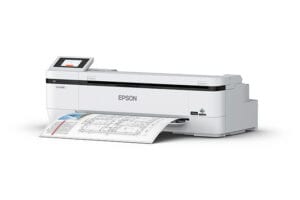
In today’s world of digitization, having an all-in-one plotter/scanner, commonly referred to as a Multi-Function Printer (MFP) plotter, can greatly enhance your productivity and streamline your workflow. The MFP plotter is a wide format printer that has a wide format scanner integrated on top of the printer.  Typically these MFP plotters offer a space saving design, and are often less expensive than a stand alone large format printer combined with a stand alone large format scanner.  These (MFP) plotters, may seem like the ultimate solution for your printing and scanning needs, but they certainly come with their share of challenges and drawbacks. While they appear to offer convenience and versatility at a lower price point for the additional scanning, printing, & copying functionality, it’s crucial to be aware of the innate limitations of a multi-function printer prior to making a purchase.  Here we’ll explore the downsides of MFP plotters to help you make an informed decision that aligns with your objectives.Epson SureColor T3170M, desktop printer, best desktop printer,

Why Not? The Challenges & Drawbacks of a MFP Plotter

Compromised Performance of the MFP Plotter

One of the most significant drawbacks of MFP plotters is that they often sacrifice specialized functionality for versatility. As a result, their performance in specific tasks might not match that of dedicated plotter & scanner devices. For instance, while they offer scanning capabilities, the quality of the scanner and ease of use is not on par with standalone scanners.

Ergonomically Dysfunctional MFP PlottersPlotter scanner for rent, Oversized scanner near me, Large format digital printing, Large format printing services

Although the MFP plotter may look good in pictures and also appears to be appealing on the showroom floor; in real-life applications, having a scanner sitting above a wide format printer in most cases is an awkward set-up.  Although you can get by with scanning a single sheet, it becomes a rather arduous task to attempt to scan a full set of plans.  Some of the configurations of the MFP plotter has the scanner feeding back-to-front, whereby the user feeds the paper in towards them which is simply just awkward.  And often times in other configurations, the scanner is raised so much higher that a step-stool is needed for those that may be vertically challenged, and this opens the door for possible injuries too.student falling in chair clipart 20 free Cliparts | Download images on Clipground 2021

MFP Plotters May Have Limited Functionality

MFP plotters are integrated devices with combined functionalities, which means that you might face limitations to functionality and the ability to upgrade specific components. Unlike standalone devices, where you can get all of the features for each device and more easily upgrade the scanner or the printer separately, MFP plotters might require a complete replacement if one component becomes outdated or malfunctions.

Potentially Higher Maintenance Costs With MFP Plotters

Lift Maintenance and Service Contracts: An introductionAll-in-one print & scan devices are more complex than standalone units, and their maintenance costs can be higher. When a component malfunctions, repairing or replacing it might involve additional expenses. Furthermore, servicing an MFP plotter might require more knowledgeable technicians, leading to potentially higher service call charges.

Single Point of Failure Impact on MFP Plotters

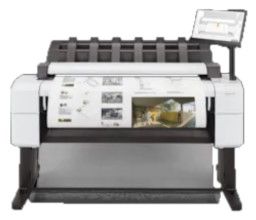
hp DesignJet T2600 MFPAnother significant factor to consider is that since an MFP plotter combines multiple functionalities, a failure in one component can render the entire device unusable. For instance, if the scanner encounters an issue, you won’t be able to print either, and vice versa. This single point of failure can disrupt your entire workflow until the issue is resolved.

Multi-Function Printers Compromise Quality & Functionality

While MFP plotters offer a wide range of features, they might lack the depth of quality & functionalities that specialized devices provide. For example, in MFP’s since the quality of the scanner is significantly degraded, look to compromise on the quality of scans that the device produces, and be resolved that your MFP will lack post scanning options that stand alone scanners offer to improve scan quality and operator efficiencies.  Another example, a dedicated photo printer will likely deliver superior print quality for photographs compared to a multi-function plotter that focuses on versatility.

MFP Plotters Offer Lower Print Volume Capacity

If your business relies heavily on high-volume printing, an MFP plotter might not be the most efficient choice. These devices are typically designed for moderate usage, and extensive printing demands could lead to more frequent breakdowns and increased wear and tear.

Future Potential Issues with Multi-Function Printers

Money Sign Wallpaper - WallpaperSafariSince a plotter/scanner is essentially two devices that are joined via engineering & software; it is highly unlikely that the functionality of each of these devices will fail or die at the same time.  If you are fortunate enough that one continues to be operable when the other device fails, you are faced with a challenging decision:

  1. Get rid of the entire machine and buy another, or
  2. keep the device to utilize the working component and purchase a replacement for the failed device.

With the second option you’ll be keeping a larger device with limited functionality.  An example that we see is: although the multi-function scanner is not the easiest to use, it surpasses the printer’s life, so the equipment owner keeps this large printer/scanner, just to use the scanner, and replaces the printer, and so ending up with two devices down the road.Epson SureColor T5170M, Large format inkjet printer, wide printer, large format digital printer, large format digital printing services, large format printing services, wide printer

What to Consider While Looking For a Plotter

Define Your Needs for a Plotter/Scanner

Before diving into the market, determine your specific requirements for the plotter. Consider factors such as print and scan volume, paper size, image quality, speed, connectivity options, and software compatibility. Understanding your needs as it relates to the devices available in the marketplace will help you narrow down the options and select a plotter that best suits your needs.

Space and Budget Considerations for a Plotter

Assess the available space in your office or workspace to ensure that the chosen plotter fits comfortably. One of the few benefits of a MFP plotter is that they typically are compact and occupy less space.  Additionally, define your budget range, including both the initial investment and long-term maintenance costs. Balancing your needs and budget is essential to find the most cost-effective solution without compromising on performance.

Print Quality and Efficiency

There is a reason why some plotters are significantly less expensive than others; remember the old adage, “you pay for what you get!” Buy cheap and you’re likely to get a cheap product. Consider what type of warranty comes with the printer; HINT: if it’s an exchange warranty, the company is inadvertently telling the consumer that it’s not worth the expense to the manufacturer to send out a technician. For a quality plotter look for a minimum of a one year on-site warranty.

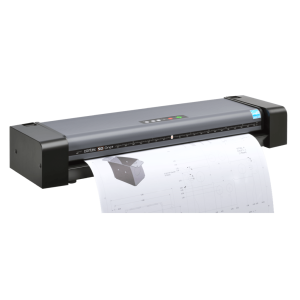
Scanning CapabilitiesContex SD One, Best large format inkjet printer, Wide format digital printer, Large plotter

Since you were seeking to invest in an all-in-one device, evaluate the scanning features carefully. Check for optical resolution, scan speed, and document feed & handling functionality. A versatile stand alone scanner is invaluable for converting physical documents into digital format, improving collaboration and document management.  If an MFP scanner is challenging to use, how often will it get used?

Plotter Connectivity and Network Integration

In today’s connected world, seamless integration into your existing network infrastructure is essential. Ensure that the plotter supports the necessary connectivity options, such as Wi-Fi, Ethernet, or USB, for easy access from various devices across your organization.

Plotter Software and Driver Support

Investigate the software ecosystem that accompanies the MFP plotter. If functionality is compromised via software limitations, considering alternate solutions might be worthwhile. A comprehensive set of drivers and software will enhance your user experience and enable smooth integration with your preferred design and productivity applications.

User-Friendly Plotter Interface

Infrastructure as Code, Made Simple - Tech from the Front LineA user-friendly interface is crucial for smooth operation and reduced downtime. Look for a plotter with an intuitive control panel and touch-screen display to simplify tasks such as print, scan, and copy operations.

Maintenance and Technical SupportClipart - Wrench Icon

Ensure that the plotter you choose comes with reliable support and good customer service. After the purchase, being able to ask questions and receive good experienced answers from in-front of your plotter is invaluable.  Getting help after the sale is really important and can save you from anguish & frustration.

Summary

While all-in-one plotter/scanners (MFP plotters) look great on the showroom floor, they are typically a subpar solution with limited benefits in real life applications.  Therefore, it’s essential to be aware of their drawbacks. Compromised performance, ergonomically dysfunctional, limited functionality, potentially higher maintenance costs, single point of failure, less specialization in features, lower print volume capacity, and future issues are some of the challenges associated with these devices. Before making a purchase, carefully consider your specific needs and the limitations of MFP plotters to ensure that you invest in a solution that best aligns with your business requirements and workflow demands.  With this comprehensive guide, you are now equipped to make an informed decision when purchasing a plotter/scanner . Remember to define your needs, consider space and budget constraints, print quality and efficiency, scanning capabilities, connectivity, software support, user-friendliness, and being able to get technical support. By doing so, hopefully you’ll find the right plotter that enhances productivity and efficiencies for your office environment.

If you want more help deciding which type is right for you, or want our expert opinion of which specific plotter is right for your particular needs, call us at (602) 224-9971 or contact us now, we’re happy to help!

What is an Eco Solvent Printer: A Comprehensive Guide

Eco-solvent printers have gained significant traction in recent years, primarily due to their environmentally friendly approach to printing. These specific types of printers utilize eco-friendly solvent inks, enabling them to produce high-quality images on a wide array of substrates.

Businesses, graphic designers, and even homeowners are increasingly adopting these innovative printing devices for their environmentally conscious nature and top-tier output quality.

An eco-solvent printer operates with inks that are petroleum-based and made from organic compounds, ensuring that they are biodegradable and more environmentally responsible than traditional solvent-based inks. The absence of water in the solvent not only makes the ink waterproof but also increases its effectiveness across different substrates.

In summary, eco-solvent printers represent a highly sought-after solution for those who prioritize both sustainability and high-quality printing. As more individuals and businesses adopt eco-friendly practices, eco-solvent printers will continue to see increased popularity and usage.

Understanding Eco-Solvent Printers

Eco-solvent printers are a type of printing device that utilizes eco-friendly solvent inks to produce high-quality images on various substrates. They have gained popularity in recent years among business owners, graphic designers, and even for home use due to their environmentally friendly features.

The inks used in eco-solvent printers are water-based, making them a greener alternative to traditional solvent-based inks. They are typically made from petroleum or petroleum by-products, which can have negative environmental impacts. By switching to an eco-solvent printer, users can reduce their carbon footprint and contribute to a more sustainable future.

One of the primary advantages of using an eco-solvent printer is its versatility in printing on numerous materials. These printers can create vibrant prints on eco-solvent paper, as well as on other substrates like vinyl, canvas, and banners. This wide range of applications makes it a useful tool for various industries, including advertising, signage, and textile printing.

Eco-solvent printers offer several benefits for both businesses and individuals. For one, they produce high-quality prints that are durable and resistant to various environmental factors, such as UV rays and moisture. The eco-solvent inks also allow for more extended print runs without requiring ink replacement, helping to save time and money in the long run.

In conclusion, eco-solvent printers are an excellent choice for individuals and businesses looking to invest in a printing device that is both efficient and environmentally friendly. By using eco-solvent inks, users can create vibrant, high-quality prints on various materials while reducing their environmental impact.

Eco-Solvent Ink

Traditional Solvent Ink

Traditional solvent ink is known for its durability in outdoor advertising applications and is widely used in printing onto various substrates such as vinyl, banners, and outdoor signs. Solvent ink is made by dissolving pigments in a solvent, producing a high-resolution image. However, these inks have a downside – they emit strong fumes and chemicals that can be harmful to the environment and user.

Environmentally Friendly Alternatives

Eco-solvent ink has emerged as a more environmentally friendly alternative to traditional solvent ink. This green-based ink is made using a low-toxicity solvent, which significantly reduces emissions and makes it much safer for users. Eco-solvent ink can print on various substrates and offers vibrant colors while maintaining a waterproof and scratch-proof finish.

The popularity of eco-solvent printers has grown in recent years among business owners, graphic designers, and even home users due to their low environmental impact, user-friendliness, and high-quality image production.

One such example of an eco-solvent printer is the Epson SureColor F6470H, which provides a sustainable and efficient printing solution.

While eco-solvent ink may not be as biodegradable as water-based inks, it is still a significant improvement over traditional solvent ink. Its reduced emissions and lower toxicity make it a more responsible choice for the environment and users alike.

Materials and Substrates

Eco-solvent printers are known for their versatility when it comes to materials and substrates they can work with. These printers use eco-friendly solvent inks to produce high-quality images on a variety of substrates, making them a popular choice for business owners and graphic designers alike.

One of the most common materials used with eco-solvent printers is vinyl. Vinyl is widely favored for its durability and ability to retain color over time. It is an ideal choice for creating outdoor banners, signs, and labels as it can withstand harsh weather conditions. Eco-solvent ink adheres well to this material, ensuring a long-lasting and vibrant finish.

Another popular substrate for eco-solvent printing is eco-solvent paper. This type of paper is specially designed to work with eco-solvent inks, providing excellent print quality and durability. Eco-solvent paper is suitable for various applications, including posters, fine art prints, and indoor banners.

Furthermore, eco-solvent printers can work with rigid substrates such as painted or coated metal, foam boards, and PVC-based boards. The ink used in eco-solvent printers softens the base material, allowing the pigments to latch onto the chemically etched surface, making the prints more durable than those produced using aqueous inks.

In summary, eco-solvent printers offer a wide range of options when it comes to materials and substrates. Some commonly used materials include vinyl, eco-solvent paper, and rigid substrates like painted or coated metal, foam boards, and PVC-based boards. This versatility makes eco-solvent printers an attractive choice for businesses and individuals looking to create high-quality, long-lasting prints for various indoor and outdoor applications.

Environmental Impact

Eco-solvent printers are designed to minimize their environmental impact, making them a popular choice for businesses and individuals looking for a greener printing solution. One of the main advantages of using eco-solvent printers is their ability to produce high-quality prints while generating very little waste. This is due to their use of eco-friendly solvents, which are less harsh than traditional solvents and enable printing on a variety of different materials.

These printers utilize inks that are biodegradable and free of hazardous chemicals such as odorants, volatile organic compounds (VOCs), and heavy metals. By using eco-solvent inks, one can reduce the emission of harmful VOCs, which are known to contribute to air pollution and harm human health. Moreover, the absence of VOCs helps to maintain indoor air quality in printing facilities, protecting the health of their operators, and catering to sustainability-conscious customers.

Besides reducing the use of harmful chemicals, eco-solvent printers also contribute to the conservation of renewable resources. The technology behind these printers has evolved to minimize the consumption of energy and raw materials, which is essential for lowering their overall carbon footprint. Some eco-solvent printers even boast decreased power consumption compared to their traditional counterparts.

In summary, eco-solvent printers provide an environmentally-friendly alternative to traditional printers by minimizing waste, reducing the emission of harmful substances, conserving resources, and decreasing energy use. These characteristics make them a suitable choice for businesses, consumers, and operators looking to reduce their environmental impact without compromising on print quality.

Popular Printer Models and BrandsEco-solvent printers have become increasingly popular due to their reduced impact on the environment and improved efficiency. In recent years, numerous brands and models have made a name for themselves in the eco-solvent printing market. Here, we’ll highlight some of the key players and their offerings.

Epson EcoTank Series: The Epson EcoTank is a widely recognized brand featuring a variety of models including the budget-friendly Epson EcoTank ET-2720 and the premium quality Epson EcoTank Photo ET-8500. Key features of these printers include large ink tanks that reduce waste and minimize cartridge replacement frequency. The EcoTank printers use water-based eco-solvent inks, which are gentler on the environment and have less potential for health risks.

Roland DG Eco-Solvent Printers: Roland DG offer a reliable and versatile range of large-format eco-solvent printers and printer/cutters. Their products are well-suited for various applications, ranging from signage and vehicle graphics to banners and posters. These printers offer exceptional print quality and ease of use, making them a popular choice for professionals in the printing industry.

In conclusion, eco-solvent printers such as the Epson EcoTank series and Roland DG offerings enable users to print efficiently while minimizing environmental impact. When shopping for an eco-solvent printer, consider factors such as brand reputation, Greenguard Gold certification, ease of use, and print quality to find the best model for your needs.

Final Thoughts

Eco-solvent printers serve as a more environmentally conscious option compared to traditional printing methods. These printers utilize eco-solvent ink, which boasts benefits like reduced fading and smudging, ultimately leading to a more cost-effective solution compared to inkjet printers.

Sustainability plays a significant role in the adoption of eco-solvent printing. Its non-toxic nature and the use of water-based ink directly contribute to a decreased environmental footprint. Lower VOC emissions when compared to other printing forms, like plastisol or water-based, make eco-solvent printers a popular choice for a greener future.

From an environmentally-friendly standpoint, the use of eco-solvent ink ensures that the printed materials remain biodegradable and sustainably sourced. This further enhances the eco-print industry’s efforts to minimize its impact on the environment.

In conclusion, eco-solvent printers and their eco-solvent inks provide a clear and viable path towards sustainable printing. By adopting this technology, businesses can contribute to reducing their overall environmental footprint while still benefiting from highly efficient and cost-effective print solutions.

What is Printer Pooling: A Comprehensive Guide

Printer pooling is a feature commonly found in modern operating systems, enabling printer administrators to create a single pool of multiple printers. This system is designed to efficiently handle large print jobs, subsequently reducing waiting times and increasing overall productivity.

In a printer pooling setup, multiple printers are linked together to function as one device. When a user sends a print job to the pooled printer, the system automatically distributes the task to the first available printer within the pool. This ensures that print jobs are completed in a timely manner, resulting in a more efficient printing process for businesses and organizations.

By implementing printer pooling, organizations can significantly improve their printing infrastructure, as it allows for better management of high print volume situations. The concept is especially beneficial in situations where rapid printing is crucial, and it helps companies maximize the productivity and capability of their existing printing resources.

Understanding Printer Pooling

Printer pooling is a technique that allows multiple printers to be connected to a single logical printer, allowing for improved efficiency when handling print jobs. In a printer pool, multiple physical printers are essentially treated as a single unit.

This means that when a print job is sent to the printer pool, the system automatically allocates the job to the first available printer in the pool. The main advantage of printer pooling is increased printing productivity, as it helps to distribute print jobs evenly across multiple devices, reducing the waiting time for users.

Setting up printer pooling is a relatively simple process, and typically involves configuring the printer settings on a central server or computer. To create a printer pool, one must first install the appropriate printer drivers for each device, and then connect each printer to a corresponding port on the server or computer. Once the printers are connected, they can be configured as a single logical printer, allowing for seamless integration of all devices in the pool.

One key aspect of printer pooling is the efficient allocation of print jobs among multiple printers. When a user sends a print job to the printer pool, the system will automatically send the job to the first available printer. If all printers are busy, the print job is placed in a queue and will be assigned to the next available printer once it becomes free. This ensures that the workload is effectively shared among the printers in the pool, thus maximizing efficiency and reducing wait times for users.

There are several factors to consider when configuring printer pooling, one of which is the compatibility of the printers in the pool. While it is possible to mix and match different printer models in a printer pool, it is generally recommended to use printers with similar features, speed, and capabilities. This helps to ensure consistent print quality across all devices and simplifies the process of managing print jobs and printer settings.

In conclusion, printer pooling is a powerful tool that can greatly improve printing productivity in environments with multiple printers. By efficiently distributing print jobs across multiple devices, printer pooling can help to reduce wait times and optimize the use of available resources. As long as the printers in the pool are compatible and properly configured, printer pooling can be a valuable addition to any office or organization looking to streamline their printing processes.

Setting Up Printer Pooling

Large Scale Printers

Printer pooling allows multiple printers to work together as a single unit, efficiently distributing print jobs among them. This feature is especially useful in busy environments where several printers are available to handle large print requests. To set up printer pooling, make sure all the printers have the same driver and are compatible with one another.

To begin, the administrator should access the Control Panel on the server where the printers are connected. In the Control Panel, navigate to the Printer Configuration applet. From there, add the printers individually and label them for easy identification, such as Printer 1 and Printer 2.

Next, select all the printers you’d like to include in the pool. To enable printer pooling, right-click on one of the selected printers and choose “Printer Properties.” In the Properties dialog box, locate the “Ports” tab, where you can see a list of available printer ports.

To create the printer pool, check the box next to each printer’s port that you want to include in the pool. Make sure that the “Enable Printer Pooling” option is selected. Click “Apply” to save the changes, and then click “OK” to close the dialog box. The printerpool is now set up and ready to use.

It’s essential to ensure that all printers in the pool are using the same driver, as mixing different drivers may lead to errors and poor performance. Regularly check for driver updates and ensure all printers are running the most recent versions.

In summary, setting up printer pooling is a simple process that involves selecting and configuring compatible printers through the Control Panel, enabling printer pooling in the Printer Properties, and ensuring that all printers are using the same driver. With a properly configured printer pool, you can efficiently distribute print jobs among multiple printers, improving productivity and reducing wait times for users.

Operating a Printer Pool

Operating a printer pool is an efficient way to manage multiple printers within a network. Printer pooling allows several printers to act as a single device, which reduces waiting times and increases productivity. The main components involved in operating a printer pool are the print spooler, queue, print job, and connection.

The print spooler, a software service, manages the print jobs sent to the printer pool. It maintains order and ensures that each print job is assigned to an available printer in the pool. This spooler service is typically found on the print server or a computer within the network.

The printing pool functions by creating a queue for print jobs. When a user sends a print job to the pool, it is automatically placed in the queue. The print spooler then assigns the print job to the next available printer. If all printers in the pool are busy, the job waits its turn in the queue until a printer becomes available. This system helps to optimize print job distribution and prevent bottlenecks.

Understanding the different connections within a printer pool is essential for managing it effectively. The printers in the pool must be connected to the same print server or network for the pooling to function properly. Each printer in the pool should have a unique connection, ensuring that multiple printers can simultaneously receive and process print jobs.

The compatibility of computers and printer drivers within the network is vital to ensure a smooth operation of the printer pool. All computers using the printer pool should have the appropriate printer driver installed to allow seamless communication between the devices. It is advisable to keep the printer drivers up-to-date to ensure the best performance and compatibility.

In a printer pooling setup, it is crucial to monitor the status of each printer and maintain them accordingly. This will help prevent downtime and ensure that the printers are functioning optimally to handle the high volume of printing in the network.

In conclusion, operating a printer pool effectively involves managing the print spooler, queue, connections, and printer drivers to ensure a seamless and efficient printing experience. Regular maintenance of the printers and adherence to best practices will help maximize the benefits of printer pooling in a networked environment.

Advantages of Printer Pooling

Printer pooling offers several benefits to businesses and organizations that deal with a high volume of printing. One of the main advantages is increased efficiency. By connecting multiple printers to a single pool, users can quickly and easily print documents without waiting for a single printer to become available. This is particularly helpful in situations where there are large print jobs or when multiple users need to print simultaneously.

Another benefit of printer pooling is improved print job distribution. When several printers are pooled together, the print jobs are automatically distributed among the available printers. This ensures a more balanced workload for each printer and results in a faster overall printing process. With printer pooling, it becomes much easier to manage a high volume of printing without overwhelming a single device.

In addition to efficiency and workload distribution, printer pooling also offers cost savings. By spreading print jobs across multiple printers, companies can reduce the wear and tear on individual devices, prolonging their lifespan. This, in turn, can lead to reduced maintenance and replacement costs over time.

Furthermore, printer pooling can help simplify billing processes. When using a printer pooling setup, all printing costs are usually pooled together, making it easier to manage and track expenses related to printing. This can result in a more streamlined billing process, allowing companies to better control their printing budget.

In summary, printer pooling provides a range of advantages for organizations dealing with large print jobs and high volumes of printing

Can a Large Format Printer Print Paper? – An Expert Analysis

Large format printers have become increasingly popular in various industries, as they offer the capability to print large and high-quality materials.

From printing banners and posters for advertising campaigns to producing detailed architectural and engineering designs, these devices play a crucial role in accomplishing diverse printing tasks. One question that often arises is whether a large format printer can print on regular paper.

The answer to this query is yes. Large format printers are designed to accommodate various types of media, including standard-sized paper. They are versatile machines that can easily adjust to different paper sizes and types. Users can benefit from the ability to print documents and images on a range of surfaces, which can increase their efficiency and productivity.

Though primarily utilized for bigger print jobs, these printers are also capable of handling smaller projects. This adaptability allows businesses and professionals to maximize their investments in large format printing technology while still meeting all their printing needs.

Types of Large Format Printers

Large format printers, also known as wide-format printers, typically support a maximum print roll width of between 18 and 100 inches. These printers are designed to handle large prints such as banners, posters, and other oversized visuals. There are different types of large format printers available in the market, each with its own set of features and capabilities.

Inkjet printers are a popular choice for large format printing as they offer high-quality, vivid color output. These printers use liquid ink that is sprayed onto the substrate, which can include materials such as paper, vinyl, canvas, and various textiles.

Depending on the specific model, inkjet large format printers can produce prints with impressive resolution and color accuracy, making them suitable for applications such as photography, fine art reproductions, and signage.

Laser printers use toner-based technology for large format printing. These printers utilize a high-powered laser beam to produce heat, fusing the toner to the substrate. Laser large format printers are known for their speed and precision, making them ideal for applications requiring high volume output, such as architectural plans, technical drawings, or business documents. Due to their toner-based technology, the color vibrancy and image quality may not be as high as that of inkjet printers, but they still can produce sharp, professional-looking prints.

All-in-one printers combine printing, scanning, and copying functions in one device. While all-in-one printers commonly cater to smaller print sizes, some models are designed to handle wide-format printing as well. These large format all-in-one printers provide versatility for users who need to print, scan and copy large documents or images.

Large format printing varies based on the specific needs of a project. Regardless of the type of large format printer being used, the printing process generally involves printing on a wide range of substrates, such as paper, vinyl, or canvas, to deliver the desired result. With the combination of modern technology and various printer options available, users can confidently achieve high-quality large format prints to meet their creative and professional needs.

Printer Features and Functions

Blueprint Scanning Services

Print Quality and Resolution

Large format printers are designed to produce high-quality prints for various applications such as posters, banners, and architectural plans. These printers often have a high print resolution, typically measured in dots per inch (dpi), which determines the level of detail and color accuracy in the final print. A wide-format printer with a high dpi will produce more precise, vibrant images, making it suitable for artists and professionals who require accurate color reproduction and sharp detail.

Print Speed

Print speed is a crucial factor to consider in large format printers, especially for businesses with high volume print jobs. Most wide-format printers have adjustable print speeds, allowing users to choose between fast output for drafts or slower speeds for higher-quality prints. It’s essential to balance print speed and quality based on the specific needs of the project at hand.

Paper Handling Capabilities

Large format printers are built to handle a variety of paper types, including plain paper, roll paper, and sheet paper. They often support borderless printing and allow for adjustments in paper margins to accommodate different media sizes. Furthermore, these printers typically have customizable paper trays and advanced paper handling features that enable users to print on different materials such as canvas, textiles, or vinyl.

Connectivity Options

Wide-format printers have multiple connectivity options, including USB ports, Ethernet connections, and wireless connections. Some models allow users to print directly from their smartphones, tablets, or other devices, making it easier to share and collaborate on large print jobs. Additionally, some large format printers come with built-in spectrophotometers, which help ensure accurate color calibration across multiple devices and over time.

In summary, large format printers offer various features for different applications, such as high print quality, adjustable print speeds, duplex printing, versatile paper handling capabilities, and multiple connectivity options. These attributes make them an invaluable tool for retailers, GIS professionals, artists, and others who need to print large documents with precise detail and color accuracy.

If you want more help deciding which technology is right for you, or want our expert opinion of which specific plotter is right for your particular needs, call us at (602) 224-9971 or contact us now, we’re happy to help!

What is a Monochrome Printer: A Comprehensive Guide

In the world of technology and printing, monochrome printers hold a significant position due to their specific functionality and cost-effectiveness. These types of printers are designed to print in only one color, which is typically black.

They offer high-quality black-and-white printing, catering to various needs such as office documents, reports, and other materials requiring sharp and clear text output.

Among monochrome printers, there are two main categories: laser printers and inkjet printers. Monochrome laser printers are known for their speed, efficiency, and ability to print large volumes of black-and-white documents at a lower cost than other types of printers.

On the other hand, monochrome inkjet printers may offer flexibility for users seeking a more compact and affordable option, though they may not provide the same speed and print volume capacity as laser printers. Understanding these differences can help consumers and businesses to make informed decisions when selecting the most suitable monochrome printer for their needs.

Monochrome Printer Basics

A monochrome printer is a type of printer that prints using black ink only, making it cost-efficient in comparison to its colored counterparts. Monochrome printers fall into two main sub-categories: laser and inkjet printers. In this section, we will provide an overview of these two types of monochrome printers.

Laser Printers

Monochrome laser printers use a laser beam to control the application of a single color, usually black, to the paper. These printers utilize toner, which is a fine powder, instead of liquid ink. Monochrome laser printers are known for their speed and cost-efficiency when producing large volumes of black-and-white documents. They are particularly suitable for office environments where high-quality text printing is essential and color printing is not necessary.

Inkjet Printers

Monochrome inkjet printers, on the other hand, use liquid ink to produce black-and-white prints. These printers function by spraying tiny droplets of ink onto the paper, creating the desired text or image. While monochrome inkjet printers may not be as fast as laser printers, they can offer better image quality and higher resolution. This makes them more suitable for applications where intricate designs and graphics are required, such as producing artistic prints or professional photographs in black-and-white.

In summary, monochrome printers can be classified into two main types based on their printing technology: laser and inkjet. Monochrome laser printers are known for their speed, cost-efficiency, and crisp text printing, while monochrome inkjet printers are recognized for their high resolution and image quality.

Depending on the specific requirements, either type of monochrome printer can be a practical choice for users who do not need color printing capabilities.

Understanding Monochrome Printers

Monochrome printers are printers that only print in a single color—usually black. These printers can either be laser or inkjet, and are designed to produce black and white documents efficiently. In this section, we’ll discuss the difference between laser and inkjet printers, as well as the comparison between monochrome and color printers.

Laser vs Inkjet

Monochrome laser printers use a high-powered laser to create markings on the paper, replacing the need for traditional ink. They typically offer faster printing and better print quality compared to their inkjet counterparts. Furthermore, monochrome laser printers tend to have a lower cost per page, making them more cost-effective for high-volume printing needs.

Monochrome inkjet printers, on the other hand, utilize black ink cartridges to create printouts. While these printers may not work as quickly as laser printers, they do have the advantage of being more affordable upfront. Monochrome inkjet printers are well-suited for smaller-scale printing needs, where speed and high-volume printing are not as crucial.

Monochrome vs Color Printers

The primary difference between monochrome and color printers lies in their ability to print in multiple colors. Monochrome printers are limited to printing black and white documents, making them more cost-efficient and simpler to maintain. They are ideal for businesses and individuals who primarily print text documents, invoices, drafts, or other black and white materials.

Color printers, which can be either laser or inkjet, are capable of printing in a full range of colors, offering more versatility for users. These printers are better suited for graphic design, marketing materials, and other documents that require vibrant and accurate color representation. However, color printers typically have a higher cost per page due to the need for multiple ink or toner cartridges.

When considering monochrome printers vs color printers, it’s essential to assess the specific needs and requirements of your printing tasks. Monochrome printers may be the more economical option for black and white printing, while color printers offer the flexibility to create visually appealing documents in various hues.

Advantages of Monochrome Printers

Print Speed

Monochrome printers are known for their faster print speeds compared to their color counterparts. They excel at producing black-and-white documents quickly and efficiently. This is especially true for monochrome laser printers, which are typically used in professional environments and can handle large volumes of text documents with ease.

Print Quality

When it comes to print quality, monochrome printers offer accurate and high-quality results for black-and-white documents. Laser printers, in particular, provide superior text quality due to their precision and ability to handle fine details. As a result, documents printed by monochrome printers are less prone to smudging and becoming unreadable due to water exposure.

Cost Efficiency

One of the major advantages of monochrome printers is their cost efficiency. With a monochrome printer, you only need to purchase black ink or toner, which significantly reduces the overall cost per printed page. Furthermore, the running costs and cost of ownership are generally lower for monochrome printers. Although they may have higher repairing costs and wear and tear, this is heavily dependent on how the printer is used.

In summary, monochrome printers offer considerable advantages in terms of print speed, print quality, and cost efficiency. They are ideal for businesses and individuals who primarily work with black-and-white documents and require a reliable and cost-effective printing solution.

Features and Connectivity Options

Automatic Duplex Printing

A key feature of monochrome laser printers is automatic duplex printing. This enables the printer to print on both sides of the paper in a single process, which helps save paper and reduce overall printing costs. Duplex printing is ideal for businesses that require large quantities of printed materials, including reports and invoices.

Expandability and Paper Capacity

Monochrome printers often offer expandability options for businesses with growing printing needs. This includes the ability to upgrade the printer’s RAM for faster processing or add additional paper trays to increase paper capacity. Standard paper capacities for monochrome printers vary, but many models can support input capacities of 250-500 sheets. Upgrading paper capacity allows for fewer interruptions in workflow and reduces the need to constantly refill paper trays.

Connectivity Choices

There are several connectivity options available for monochrome printers, depending on the specific needs of the user. Many modern monochrome laser printers provide wireless capabilities, allowing users to print from their desktop, smartphone, or tablet without the need for a physical connection. This feature supports efficient mobile printing, particularly useful for businesses with staff working remotely.

In addition to wireless options, monochrome printers also offer built-in Wi-Fi and Ethernet interfaces for seamless network integration. Alternatively, some printers can be connected locally to a single computer through a USB interface for simpler, one-to-one connections. This variety of connectivity choices allows businesses to choose the best solution for their unique requirements and preferences, ensuring a smooth and efficient printing experience.

Why Is My Printer Printing Yellow? Quick Solutions Explained

Wondering why your printer is printing yellow? We wondered the same thing, so we documented what we tried for your benefit. In this article, we go over the common causes of this frustrating issue as well as the quick solutions to fix it. You can trust the AZ Overland Blueprint experts!

Key Takeaways

  • Common causes of yellow printing include faulty ink cartridges, clogged or dirty printheads, and misaligned printer settings.
  • Check your nozzle, printhead alignment, or contact manufacture support to resolve this issue.
  • Replace your printer to avoid the rabbit hole of spending more time and money to fix this issue.
  • Contact AZ Overland Blueprint for printer support or to find the right printer replacement.

When our printer started printing too much yellow in images, it became an utter challenge to solve it and fix the printer. We were frustrated, to say the least. So, we decided to document what we had tried (yet, looking back, we might have just got lost down that silly rabbit hole!). And spoiler alert: we ended up purchasing a replacement, just wish we would have done so a lot earlier.

In fact, we liked our replacement so much that we became an Authorized Dealer Partner and now sell them at a nice discount!

As you attempt to solve your printer’s issue, it is worth noting that the issue can stem from the printer software or hardware, and therefore requires proper troubleshooting steps. You might also wonder if you should replace your printer with used equipment or to put in the effort to resolve these issues. This article will explore the possible causes of printers printing yellow and provide guidance on how to address them effectively.

By understanding these issues, users can take the necessary steps to restore the printer’s performance and ensure high-quality printouts for future printing projects.

Suggestion: Read this entire blog post prior to attempting any of the possible remedies. Hint: there is one simple secret solution that often resolves print quality issues! And as a bonus, there is also an amazing offer!

Common Causes of Yellow Printing

Cartridge Issues

One of the primary reasons a printer may produce yellow output is due to issues with the ink or toner cartridges. Defective yellow toner cartridges, for instance, can produce a yellow background on your prints. Additionally, running low on black ink can cause the printer to produce yellow prints instead of black ones. Ensuring the proper seating of the black ink cartridge in the printer is also key, as improper installation can lead to this issue.

It’s important to check the ink levels of all cartridges, specifically cyan, magenta, and yellow, as an imbalance or low levels in any of these can cause color discrepancies in the final print.

Printhead Problems

The printhead is the part of the printer that transfers ink from the cartridges onto the paper. If the printhead is clogged or malfunctioning, it can cause yellow printing. This is particularly true when there are issues with the cyan ink mixing with the other colors in the printhead. Conducting a printhead test can help identify if the yellow cast is a result of hardware problems.

Clogged Nozzles

Clogged nozzles are another common factor that contribute to yellow printing. When the nozzles responsible for ejecting cyan and magenta ink become clogged, it can lead to an overabundance of yellow in the output. In such cases, performing a nozzle check pattern is vital to identify and resolve the issue.

Cleaning the clogged nozzles can usually be done through built-in maintenance features on the printer or by manually removing the printhead and cleaning it with proper tools. In some cases, ink tubes connected to the printhead may also need to be checked for blockages.

By addressing cartridge issues, printhead problems, and clogged nozzles, you can troubleshoot and resolve most causes of yellow printing in a printer. Regular maintenance, including checking ink levels and cleaning printheads, is essential to avoid such problems.

If you’re looking for a hassle-free printing experience with minimal maintenance required, we personally recommend Epson SuperTank Printers.

Color Management and Settings

Software Settings

Proper color management begins with the software settings used while printing your images. Ensure that you adjust the printer driver settings, where color profiles can be managed and customized. This allows for better control over color balance and helps prevent unwanted yellow tints. It is important to choose the correct color profile that matches the paper type and your printer model for accurate color reproduction.

Paper Type

Selecting the appropriate paper type setting in the printer software is essential for achieving accurate color prints. Different paper types have varying characteristics, which can affect the color balance of the printed image. Make sure to choose the correct paper type setting according to the paper you are using to print your images. This will help reduce the chances of a yellow tint appearing in the print.

Grayscale Settings

When printing in grayscale, it is crucial to adjust the settings to generate neutral colors, such as grays and blacks. There are two common grayscale options:

  1. Black Only: Uses only black toner to create neutral colors without a color cast. This setting is ideal for documents and grayscale viewgraphs.
  2. CMYK Gray: Combines all four toner colors (cyan, magenta, yellow, and black) to generate neutral colors. This setting may produce more accurate grayscale images but can be susceptible to slight color casts if the color balance is off.

By paying attention to color management and settings, you can prevent issues such as excessive yellow tint in your prints. Adjusting software settings, selecting the proper paper type, and managing grayscale settings are all key factors in achieving accurate color balance in your printed images.

Resolving Print Quality Issues

Nozzle Check and Cleaning

If your printer or plotter is producing prints with too much yellow or other print quality issues, you should start by performing a nozzle check. A nozzle check will help you determine if any of the print head nozzles are clogged or not functioning properly. To perform a nozzle check, follow the instructions provided in your printer’s user manual. If the test print or test page reveals any issues with the nozzles, proceed to clean the print head nozzles. Cleaning the print head nozzles can remove clogs and improve print quality. Remember to follow the manufacturer’s recommendations for proper cleaning procedures.

Ink Level Monitoring

Another factor that could affect the print quality is the ink levels in your printer. Inadequate ink levels can cause color imbalances, resulting in issues such as excessive yellow tones. Regularly monitor your printer’s ink levels to ensure that all the colors are properly balanced. Most printers come with built-in tools for ink level monitoring. If your printer does not have such tools, you can check the ink levels manually. Replace any low or empty cartridges to maintain optimal print quality.

Print Head Alignment

Misaligned print heads may also cause print quality issues, including the appearance of yellow lines or green hues on your document. Print head alignment is crucial for ensuring accurate color reproduction and even ink distribution. Check the alignment of your printer’s print head by printing a test page or a test print containing all the colors. If the alignment is off, follow the steps outlined in your printer’s user manual to correct the issue. Regular print head alignment can help prevent print quality problems, keeping your prints sharp and vibrant.

Firmware & Software Drivers

The firmware is the software that resides inside the printer. The software drivers is the software that allows your computer to effectively communicate with the printer’s firmware, it’s how your computer even knows that there is a printer connected. Often the manufacturer of the printer updates the printer’s firmware & drivers. However, your printer does not necessarily automatically receive these updates. Updating the firmware &/or the software drivers from the manufacturer’s web site could be the most simple secret solution that often resolves print quality issues without having to deal with cartridges, cleaning, or printheads.

If these troubleshooting steps don’t resolve the issue, it might be time to consider a professional solution or an upgrade to a more reliable printer model.

Tips for Contacting Manufacturer Support

If you face issues with your printer producing yellow prints, it’s also recommended to contact the printer manufacturer’s support team. They are well-equipped to provide knowledgeable and clear guidance to help resolve the issue. Most manufacturers offer various means of support, such as phone, email, or online chat. Here are a few things to keep in mind when contacting manufacturer support:

Have the Right Information Ready

Before contacting, make sure you have the necessary information at hand, such as the printer model, serial number, and a detailed description of the issue. This will enable the support team to accurately diagnose the problem and provide appropriate solutions efficiently.

Since the support teams handle numerous concerns daily, there might be a waiting time before your query is attended to. Remain patient and take advantage of wait times by collecting any additional information or performing preliminary troubleshooting steps, such as checking the ink levels or verifying that a genuine cartridge is being used.

Browse the Manufacturer's Website

To expedite the process, consider browsing the manufacturer’s website while waiting for a response. It may contain detailed articles, frequently asked questions (FAQs), or resources specifically addressing print-quality issues.

Ask About Warranty Coverage

Keep in mind that your printer’s warranty might cover replacement parts or services if the issue is due to a manufacturing defect. Don’t hesitate to inquire about your warranty coverage and any potential remedies available to you.

Contacting the manufacturer’s support team is an effective and reliable approach when dealing with issues like printer producing yellow prints. By providing accurate information, being patient during wait times, and utilizing available resources, you’ll receive the assistance needed to resolve your printer’s problem in a timely manner.

When to Buy a New Printer

We often spend countless hours trying to fix a printer that wasn’t expensive in the first place, it may have surpassed its useful life, or is simply a piece of crap. Let’s face it, if it’s not working properly, it’s currently a piece of crap! As we go down that proverbial rabbit hole, we’re filled with emotions—faith that this or that fix will work—only to be disappointed when our efforts result in no improvement, or worse, marginal improvement. This leads us to believe we’re on the right track, only to eventually feel more frustration when the problem remains unresolved. Here are a few reasons why upgrading might be the smarter option.

1. High Repair Costs

If you’re frequently spending money on repairs or replacement parts, it may be time to evaluate whether investing in a new printer would save you more in the long run. Older printers often require more maintenance, and the cost of repairing key components, like printheads or cartridges, can quickly add up.

2. Outdated Features

Printing technology has advanced significantly in recent years, and if your printer lacks features like wireless connectivity, cloud printing, or energy-efficient settings, it might be worth upgrading to a model that offers modern conveniences. Newer printers are faster, produce higher-quality prints, and typically operate at a lower cost per page.

3. Frequent Downtime

If printer problems are disrupting your workflow and costing you valuable time, it may be worth upgrading to a more reliable and efficient printer. Newer models offer better performance and require less maintenance, so you can spend more time focusing on your business instead of troubleshooting.

Trade in Your Old Printer with AZ Overland Blueprint

At AZ Overland Blueprint, we make upgrading your printer easy and affordable. Our trade-in program allows you to exchange your old, underperforming printer for a brand-new model, often with significant savings. Plus, many of our new printers, like the Epson SuperTank series, come with two years’ worth of ink included—so you can avoid frequent ink replacements and keep your operating costs low.

Why keep struggling with a printer that’s beyond its prime? Contact us to trade in your faulty printer for a brand-new, fully functioning one, and easily print with superior quality by next week!

Avoid the Rabbit Hole

We’ve provided several potential solutions to help you resolve your printer’s yellow-tinted output, including checking ink cartridges, printheads, and software settings. While these fixes can work for many cases, sometimes your printer is simply beyond saving. If you’ve found yourself troubleshooting the same issues repeatedly or pouring more money into repairs than the printer is worth, you might be stuck in what we call the rabbit hole—a never-ending cycle of temporary fixes that only lead to more frustration.

Instead of wasting more time and money, it might be best to cut your losses and upgrade to a new, reliable printer. AZ Overland Blueprint offers an easy solution: trade in your old, faulty printer for a brand-new model. We carry trusted brands like Brother, Canon, and Epson, and many of our printers come with two years’ worth of ink included—saving you even more in the long run. Call us today at (602) 224-9971 to order your new printer and take advantage of our current trade-in offers!

Ready for an Upgrade?

0
    0
    Your Cart
    Your cart is emptyReturn to Shop